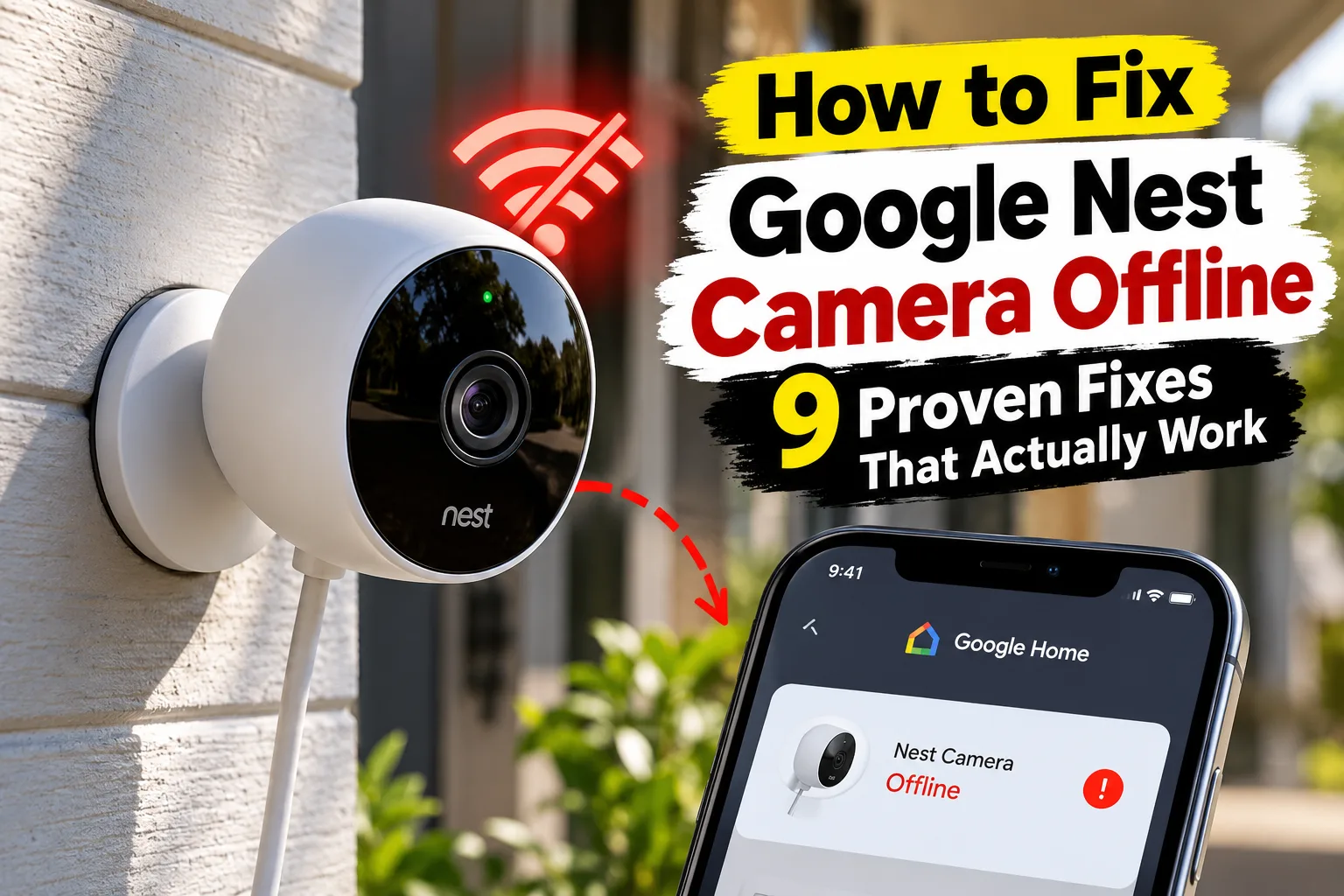
If your Google Nest Camera is offline, the problem is usually caused by a weak Wi-Fi connection, router issues, power interruptions, outdated app settings, or temporary network outages. In most cases, restarting your router, checking the camera’s power supply, improving Wi-Fi signal strength, and reconnecting the camera through the Google Home app will restore the connection within a few minutes.
Is Your Google Nest Camera Offline?
A Google Nest Camera gives you real-time visibility around your home through live video, motion detection, and cloud-based event recording, helping you keep an eye on your property whether you’re home or away. When it suddenly goes offline, you lose access to live streaming, recorded events, and instant security notifications. For many homeowners, this can be frustrating—especially when you’re away from home and relying on the camera to monitor your property.
The good news is that a Google Nest Camera Offline issue rarely means the camera is permanently damaged. In most situations, the camera simply cannot communicate with your Wi-Fi network or Google’s cloud services. Problems such as router restarts, weak wireless signals, temporary internet outages, incorrect network settings, or interrupted firmware updates are far more common than hardware failures.
This guide explains exactly why your Google Nest Camera goes offline and walks you through 9 proven solutions to fix a Google Nest Camera Offline issue without calling a technician. Every step is written for homeowners and can usually be completed using basic tools and the Google Home app.
Quick Google Nest Camera Offline Troubleshooting Checklist
| Problem | Possible Cause | Recommended Fix |
| Camera shows Offline in Google Home | Wi-Fi disconnected | Restart your router and reconnect the camera |
| No Live Video | Weak Wi-Fi signal | Move the router closer or improve Wi-Fi coverage |
| Camera randomly disconnects | Network interference | Reduce wireless interference and check bandwidth |
| Battery camera keeps going offline | Low battery | Fully recharge the camera |
| Wired camera offline | Power interruption | Verify the power adapter and outlet |
| Camera offline after changing Wi-Fi | New network settings | Reconnect the camera to the new Wi-Fi network |
| Camera offline after router replacement | Saved Wi-Fi details no longer match | Remove and set up the camera again |
| Camera still offline | Software issue | Restart the camera and continue troubleshooting |
Before You Start Troubleshooting
Before making any changes, make sure you have everything you’ll need.
Estimated Repair Time
15–30 Minutes
Difficulty Level
Easy
What You’ll Need
- Smartphone with the latest Google Home app
- Stable home Wi-Fi connection
- Access to your Wi-Fi router
- Google Account linked to the camera
- Camera charging cable (Battery models)
- Power adapter (Wired models)
Safety Tip
If you’re using a wired Nest Camera, unplug the camera before inspecting the power cable or adapter. Never force connectors into the camera or use damaged charging accessories.
Why Is Your Google Nest Camera Offline?
There isn’t a single reason behind a Google Nest Camera Offline issue. In most homes, the camera loses its connection because of one or more of the situations explained below.
• Weak Wi-Fi Signal
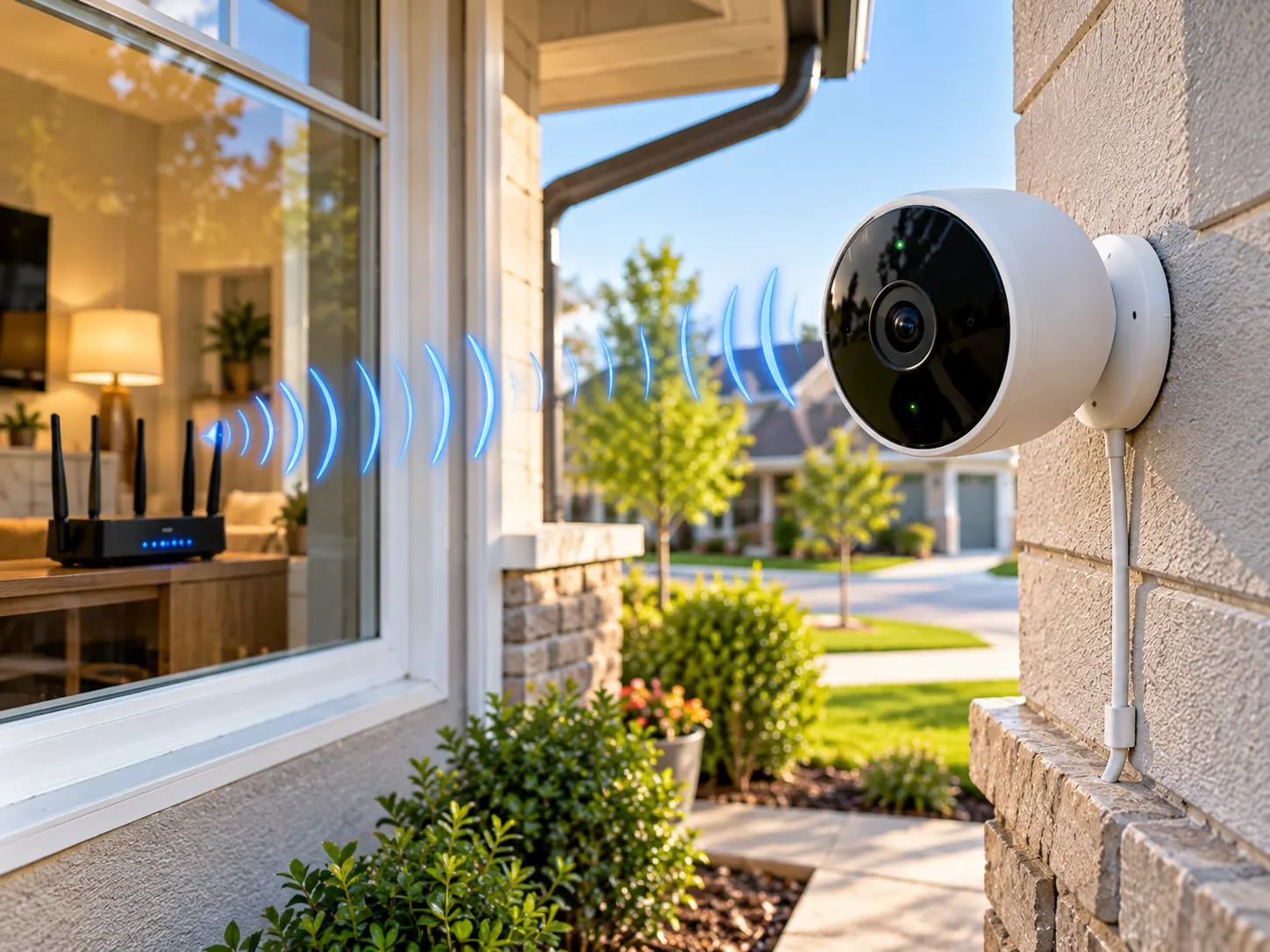
If your camera is installed far from your router, the wireless signal may not be strong enough to maintain a stable connection. Thick walls, brick exteriors, large appliances, and metal objects can further reduce signal strength.
• Router Restarted or Lost Internet
After a power outage or router reboot, your camera may take several minutes to reconnect. If the internet service itself is unavailable, the camera will continue to appear offline until the connection is restored.
• Power Supply Problems
Battery-powered cameras may disconnect when the battery becomes critically low. Wired cameras can also go offline if the power adapter, cable, or electrical outlet is interrupted.
• Google Home App Sync Issues
Sometimes the camera is online, but the Google Home app hasn’t refreshed correctly. Closing and reopening the app often resolves temporary synchronization issues.
• Router Settings Changed
Installing a new router or changing your Wi-Fi name (SSID) or password without updating the camera’s settings can prevent it from reconnecting. Google recommends updating the camera’s network information or setting it up again if the Wi-Fi details change.
• Temporary Google Service Issue
On rare occasions, temporary service interruptions on Google’s side may delay communication between your camera and the Google Home app until normal service resumes.
Fix 1 – Check If Your Internet Is Working
Before troubleshooting a Google Nest Camera Offline problem, make sure your home’s internet connection is functioning normally.
Many users immediately restart the camera when the real issue is an internet outage.
What to Do
- Connect another device, such as your smartphone or laptop, to the same Wi-Fi network.
- Try browsing a couple of websites or playing an online video for a minute to confirm that your internet connection is stable.
- If other devices also cannot connect, restart your modem and Wi-Fi router.
- Wait 3–5 minutes for your network to stabilize.
- Open the Google Home app and check whether the camera reconnects automatically.
If your internet provider is experiencing a temporary outage, your Nest Camera will remain offline until service is restored.
If you’ve noticed that other smart home devices are also struggling to reconnect after a network interruption, our guide on How to Fix a Smart Plug Won’t Connect to Wi-Fi explains additional steps that can help restore a stable connection.
Fix 2 – Restart Your Google Nest Camera
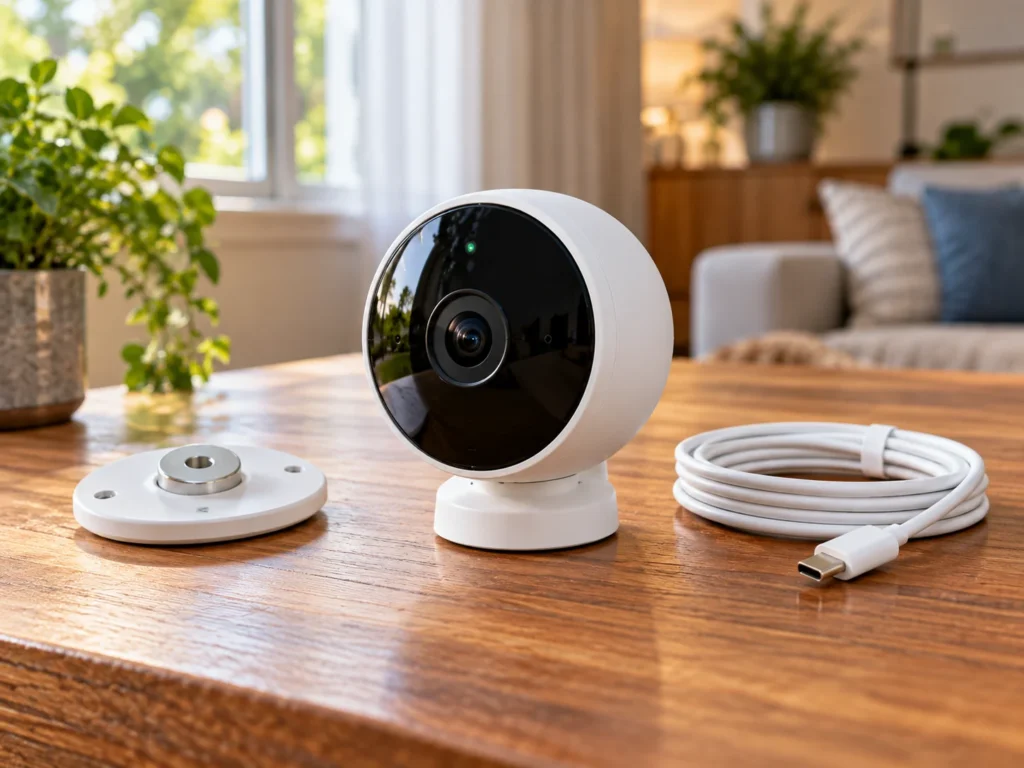
A simple restart can clear temporary software glitches that occur after network interruptions or firmware updates.
Unlike a factory reset, restarting your camera does not erase your settings or recordings.
For Battery Models
- Remove the camera from its magnetic mount.
- Press and hold the restart button (if your model supports it) or disconnect the battery briefly.
- Wait about 15 seconds.
- Reattach the camera and allow it to reconnect.
For Wired Models
- Unplug the power adapter.
- Wait 30 seconds.
- Plug the camera back in.
- Allow up to 5 minutes for the camera to reconnect.
Once restarted, check the Google Home app again to see whether the camera is back online.
Fix 3 – Improve Your Wi-Fi Signal
One of the most common reasons for a Google Nest Camera Offline message is poor Wi-Fi coverage.
A strong Wi-Fi signal on your smartphone doesn’t always mean your Nest Camera receives the same coverage. Exterior walls, brick construction, insulation, and nearby objects can significantly reduce signal strength where the camera is installed.
Signs of Weak Wi-Fi
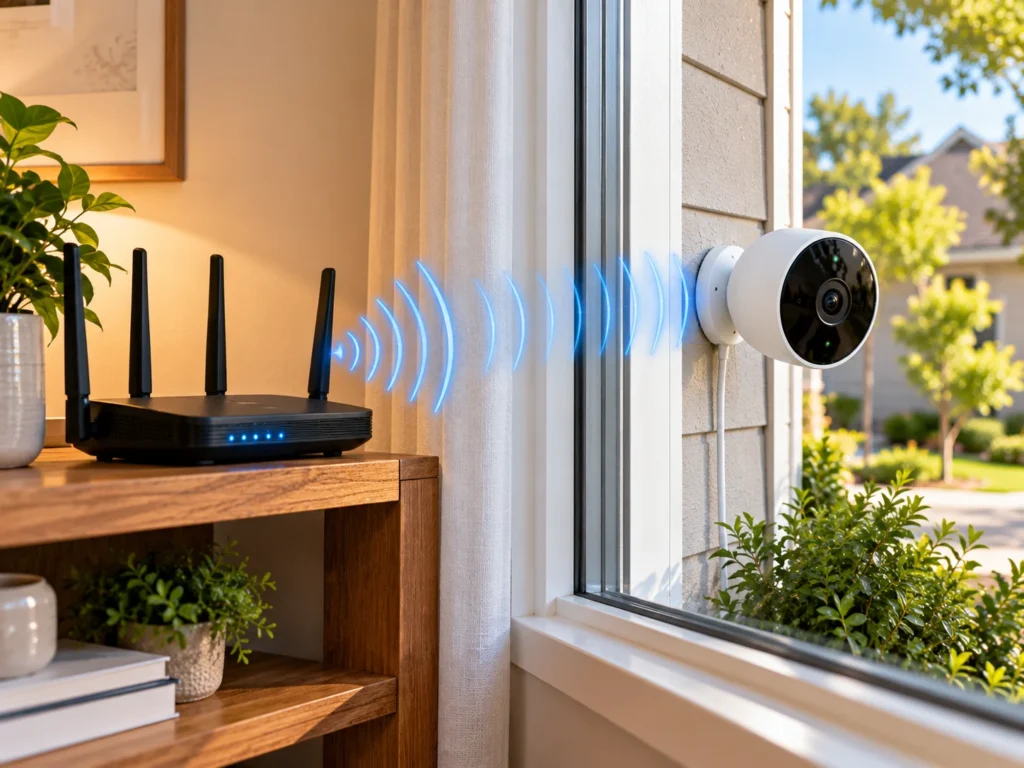
- Live video loads slowly.
- Frequent buffering.
- Camera randomly disconnects.
- Gaps appear in video history.
- Offline message appears during bad weather.
How to Improve the Connection
- Move your Wi-Fi router to a more central location.
- Keep the router away from microwaves, cordless phones, and other electronics that may cause interference.
- If possible, reduce the number of devices using heavy internet bandwidth at the same time.
- If your camera is installed in an area where the Wi-Fi signal is consistently weak, expanding your home network with a reliable mesh Wi-Fi system can provide much more stable coverage.
After improving the signal, wait a few minutes and check whether the camera reconnects automatically. Google also notes that sufficient bandwidth and good Wi-Fi coverage are important for reliable video streaming and cloud recording.
Many connectivity problems affecting Google Nest Cameras and Ring Doorbells share the same root cause. If you also use a Ring device, read our guide on How to Fix Ring Doorbell Flashing White After a Power Outage for additional Wi-Fi and power troubleshooting tips.
Fix 4 – Check the Camera’s Power Supply
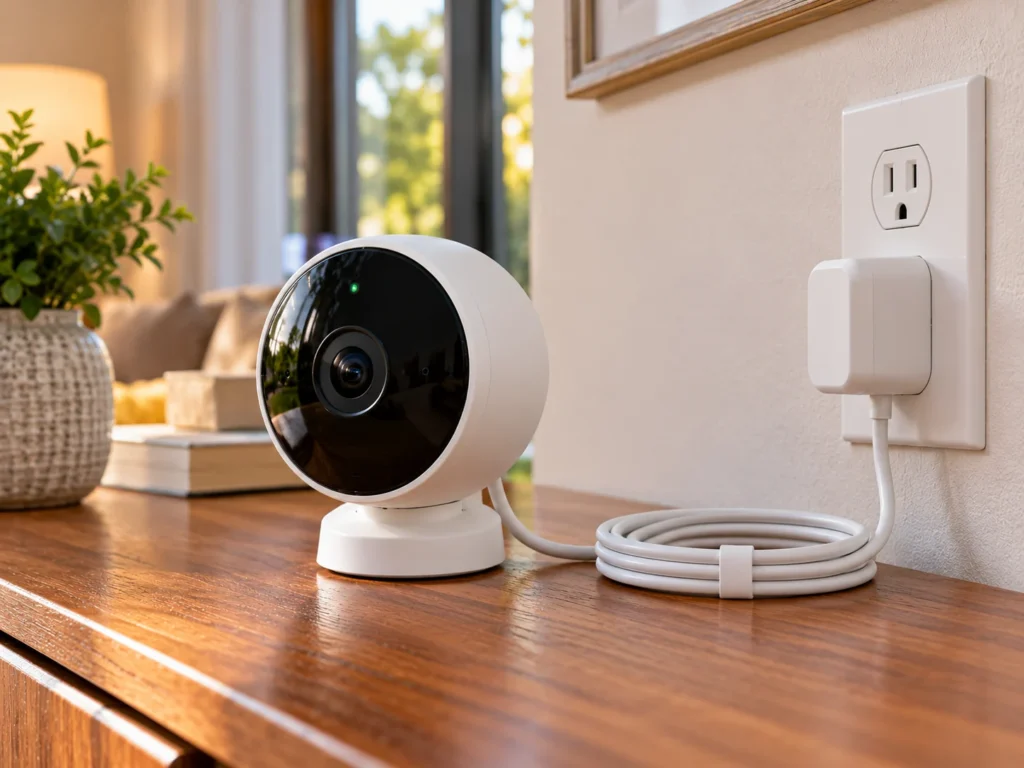
If restarting your camera didn’t solve the problem, the next step is to verify that it’s receiving a stable power supply.
Many homeowners assume their internet connection is at fault, when the real issue is an interrupted power source. Power-related problems are one of the most common reasons behind a Google Nest Camera Offline message.
For battery-powered Nest Cameras, a critically low battery can prevent the device from reconnecting after waking from sleep mode. For wired models, a loose adapter, damaged cable, or faulty outlet can cause the camera to appear offline.
For Battery-Powered Models
Follow these steps:
- Open the Google Home app.
- Select your Nest Camera.
- Check the current battery percentage.
- If the battery level is below 20%, charge it completely before testing the camera again.
- After charging, allow the camera a few minutes to reconnect.
For Wired Models
Inspect the following:
- Confirm that the power adapter is fully seated in the wall outlet and that the cable is securely connected to the camera without any loose connections.
- Check that the charging cable isn’t bent, cut, or damaged.
- Try plugging the adapter into a different wall outlet.
- If available, test using another compatible Google Nest power adapter.
Once you’ve confirmed that the camera is receiving consistent power, check whether it reconnects automatically. Many temporary offline issues disappear as soon as stable power is restored.
Fix 5 – Refresh the Google Home App
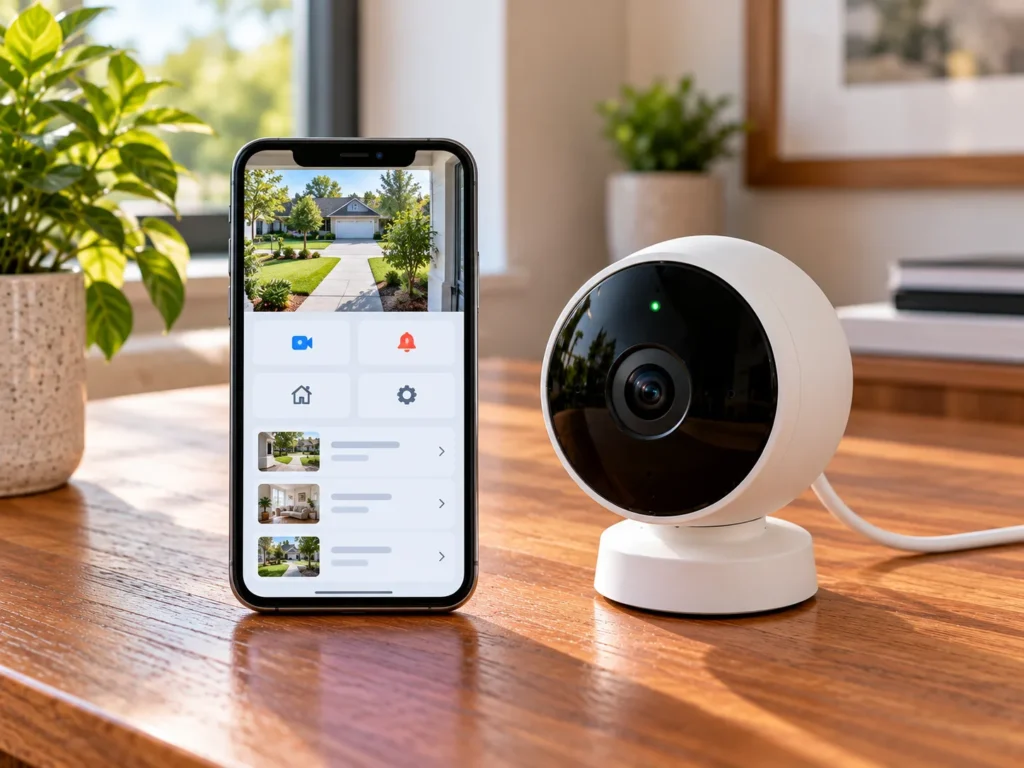
Sometimes a Google Nest Camera Offline message appears even though the camera is online because the Google Home app hasn’t refreshed its status correctly.
This usually happens after:
- A temporary internet interruption
- A recent firmware update
- Switching between Wi-Fi and mobile data
- App synchronization delays
Refreshing the app often restores communication without requiring any changes to the camera itself.
Steps
- Close the Google Home app completely.
- Wait about 15 seconds.
- Open the app again.
- Pull down to refresh the device list.
- Check whether the camera status changes from Offline to Online.
If the issue continues, make sure you’re using the latest version of the Google Home app, as updates frequently include bug fixes and connectivity improvements.
Fix 6 – Reconnect Your Google Nest Camera to Wi-Fi
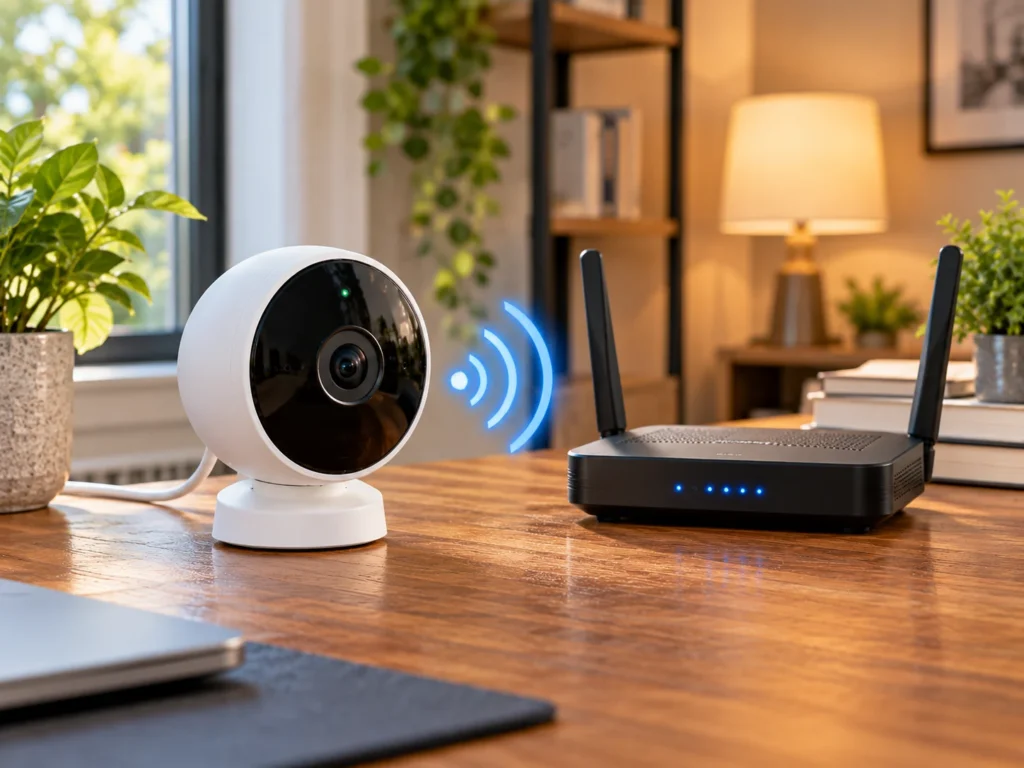
If your router was replaced, your Wi-Fi password changed, or your network name (SSID) was updated, a Google Nest Camera Offline issue can occur because the camera is still trying to connect using the old network information.
In this situation, reconnecting the camera to your current Wi-Fi network usually resolves the issue.
How to Reconnect
- Open the Google Home app.
- Select your Nest Camera.
- Open Device Settings.
- Follow the prompts to reconnect the camera to your home network.
- Enter your current Wi-Fi password carefully.
- Wait several minutes while the camera reconnects.
Helpful Tip
To reduce the chances of seeing a Google Nest Camera Offline message again, follow these best practices:
- Use a strong and stable Wi-Fi signal.
- Avoid placing the camera at the extreme edge of your router’s coverage.
- If you recently upgraded your router, reconnect all smart home devices one by one to avoid network conflicts.
Fix 7 – Check for Firmware or Service Issues
Occasionally, a Google Nest Camera Offline message appears because the camera is installing a firmware update or Google’s cloud services are temporarily unavailable.
Although these situations are uncommon, they can temporarily interrupt live video and device communication.
Signs That a Firmware Update May Be in Progress
- The camera LED behaves differently than normal.
- Live video is temporarily unavailable.
- The Google Home app may temporarily display the camera as unavailable while it completes the update or re-establishes its connection.
- The camera reconnects automatically after several minutes.
What You Should Do
- Wait 10–15 minutes before restarting the camera.
- Avoid disconnecting the power while an update may be installing.
- Check whether other Google Nest devices in your home are working normally.
- If multiple devices are offline at the same time, the issue may be related to your network or a temporary cloud service interruption.
If everything else in your home is functioning normally but your camera still remains offline after waiting, continue to the final troubleshooting steps in Part 3.
Expert Tips to Prevent Google Nest Camera Offline Issues
The following best practices can significantly reduce unexpected disconnects in the future.
Keep Your Router in a Central Location
Avoid placing your router inside cabinets, behind large furniture, or near thick concrete walls.
Maintain Strong Wi-Fi Coverage
If your outdoor camera receives a weak signal, consider installing a mesh Wi-Fi system or an additional access point.
Keep the Camera Firmware Updated
Allow automatic firmware updates whenever possible. Updates often improve connectivity, stability, and security.
Avoid Frequent Router Reboots
Constantly restarting your router can interrupt communication between your smart home devices and Google’s cloud services.
Check Device Health Regularly
Open the Google Home app occasionally to verify battery status, connection quality, and overall device health before problems develop.
Common Mistakes That Cause Google Nest Camera Offline Problems
Many users accidentally make troubleshooting harder by doing the following:
Factory resetting the camera before checking the Wi-Fi connection.
Moving the camera repeatedly while troubleshooting.
Changing router settings without reconnecting the camera.
Ignoring low battery warnings.
Unplugging the camera during a firmware update.
Avoiding these mistakes can save time and prevent unnecessary setup work.
Fix 8 – Check Your Router Settings
If your Google Nest Camera still appears offline after reconnecting to Wi-Fi, the problem may be related to your router’s configuration rather than the camera itself.
Many modern routers automatically change wireless settings during firmware updates or after replacing networking equipment, which can lead to a Google Nest Camera Offline problem. These changes can prevent smart home devices from maintaining a stable connection.
Things to Check
Restart Your Router Properly
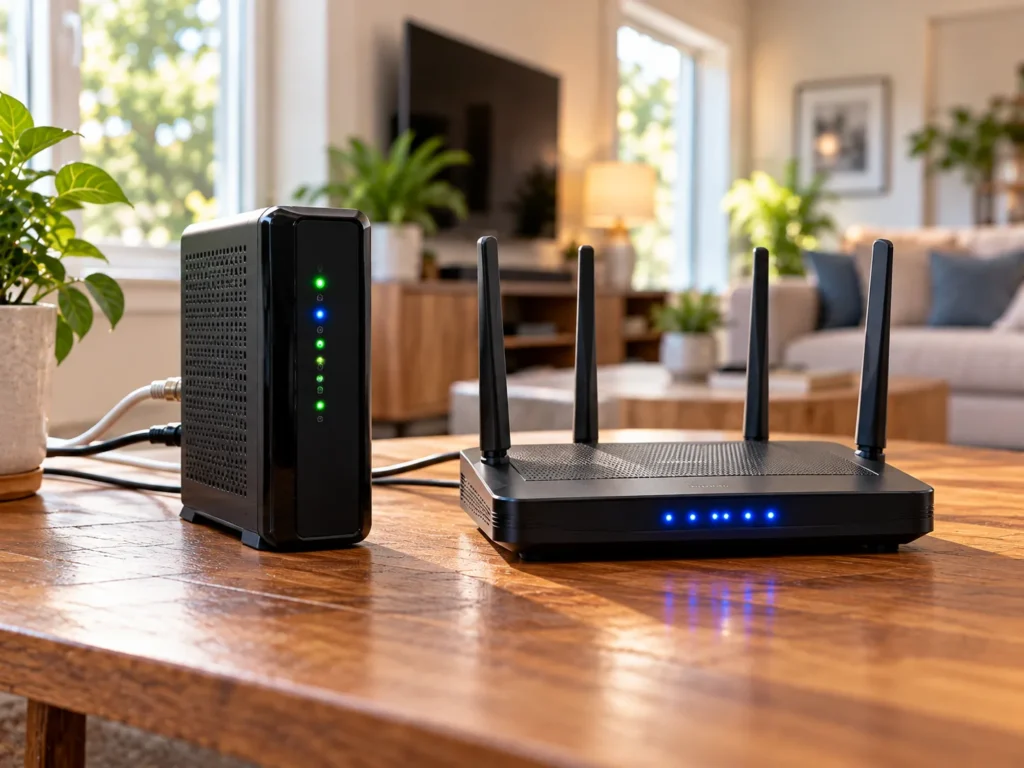
Instead of simply pressing the power button, follow this process:
- Unplug your modem and router.
- Wait 30–60 seconds.
- Plug in the modem first.
- Wait until all internet lights become stable.
- Turn on your Wi-Fi router.
- Wait another 3–5 minutes.
- Open the Google Home app and check whether your camera reconnects.
Allowing your modem and router to complete a full restart refreshes the network connection and often restores communication with smart home devices that unexpectedly went offline.
Check Wi-Fi Coverage
Even if your phone shows full Wi-Fi bars, your Nest Camera may still receive a weak signal because it is mounted outside your home.
Outdoor walls, brick, metal siding, mirrors, and large appliances can reduce signal quality.
If possible:
- Move the router closer.
- Install a Mesh Wi-Fi system.
- Reposition your Wi-Fi access point.
- Reduce interference from other wireless devices.
Avoid Router Overload
Too many connected devices can reduce available bandwidth.
Examples include:
- 4K Video Streaming
- Online Gaming
- Video Meetings
- Cloud Backups
- Large Downloads
When several devices are using a large amount of internet bandwidth at the same time, your Nest Camera may struggle to maintain a consistent connection and could briefly appear offline.
After making these router changes, check whether the Google Nest Camera Offline message disappears in the Google Home app.
Fix 9 – Factory Reset Your Google Nest Camera (Last Resort)
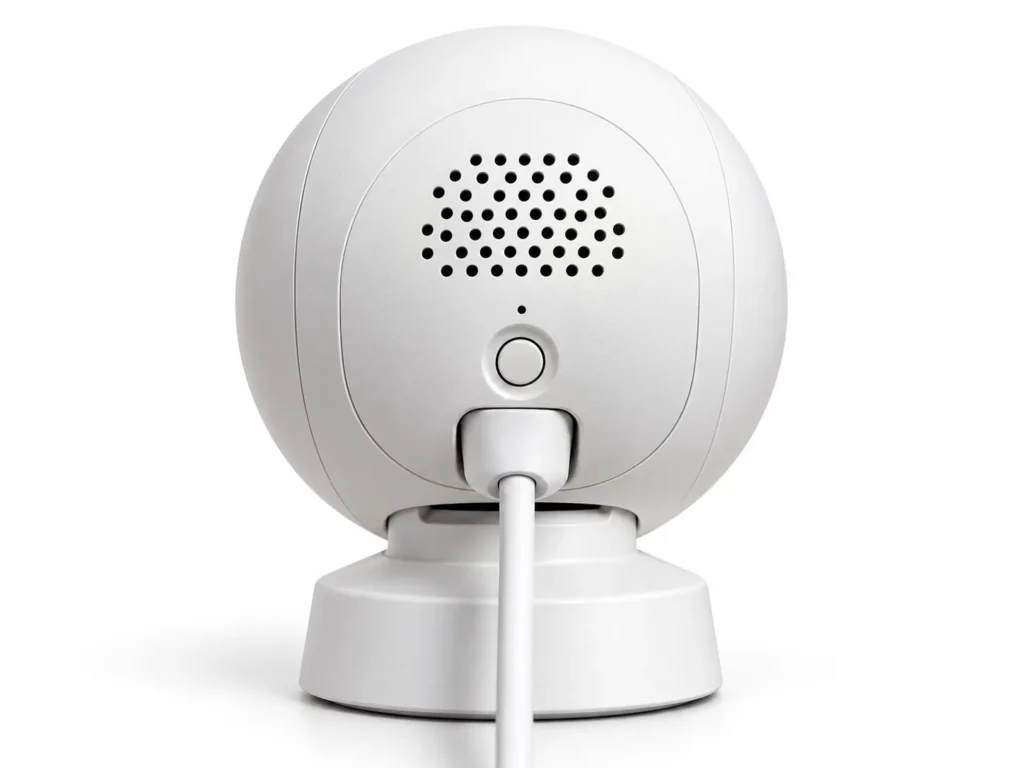
If none of the previous solutions restore your camera’s connection, resetting the device to its factory settings may be the last practical troubleshooting step before contacting Google Nest Support.
A factory reset removes the camera from its current configuration and allows you to set it up as a new device.
Important: Before performing a factory reset, save any important video clips you want to keep. Depending on your model and setup, removing and setting up the camera again may affect locally available settings or video history.
How to Factory Reset
Although the exact reset method varies slightly between Nest Camera models, the general process is:
- Locate the reset button.
- Press and hold it until the status light indicates the reset process has started.
- Release the button.
- Allow the camera enough time to complete its startup process before checking its status in the Google Home app again.
- Open the Google Home app.
- Add the camera as a new device.
- Complete the setup process.
Only perform a factory reset after every other troubleshooting method has failed.
When Should You Contact Google Nest Support?
If your camera still remains offline after:
- Restarting your router
- Restarting the camera
- Checking the power supply
- Improving Wi-Fi coverage
- Reconnecting to Wi-Fi
- Updating the Google Home app
- Factory resetting the camera
it’s time to contact Google Nest Support.
After reviewing your troubleshooting steps, Google Nest Support can identify whether the problem is related to hardware, software, or your network configuration.
- Internal hardware failure
- Damaged Wi-Fi module
- Power circuit problems
- Firmware corruption
- Warranty replacement eligibility
If your camera is still covered under warranty, Google may recommend repair or replacement after diagnosing the device.
If the Google Nest Camera Offline message still appears after completing the factory reset, the issue is more likely related to hardware or your home network.
Google Nest Camera Offline FAQs
-
Does Google Nest Camera reconnect automatically after an internet outage?
Yes. In most cases, the camera automatically reconnects once your Wi-Fi network and internet service are restored. If it remains offline for an extended period, restarting the router and camera usually resolves the issue.
-
Why does my Google Nest Camera keep going offline?
Frequent disconnections are commonly caused by weak Wi-Fi coverage, network interference, insufficient internet bandwidth, unstable power, or outdated router settings.
-
Will restarting my camera delete my recordings?
No. Restarting simply refreshes the device. Recorded cloud videos remain associated with your Google account according to your subscription and retention settings.
-
Does a factory reset delete everything?
A factory reset removes the camera’s current setup and you’ll need to add it again. Depending on your device and app, you should save any important clips before resetting.
-
Can slow internet make my Nest Camera appear offline?
Yes. If your internet upload speed is too low or multiple devices are consuming bandwidth, the camera may disconnect or fail to stream video reliably.
-
Can cold weather affect a Nest Camera?
Yes. Very low temperatures can reduce battery performance on battery-powered models, which may contribute to connectivity problems until the battery is recharged or temperatures improve.
Final Thoughts
A Google Nest Camera Offline message doesn’t usually indicate a faulty camera. For most homeowners, the camera goes offline because it loses communication with the home network, experiences an unstable power supply, or encounters a temporary software or synchronization issue rather than suffering from a hardware failure.
By following the nine troubleshooting methods in this guide, most Google Nest Camera Offline problems can be resolved at home without replacing the device or paying for professional service.
Building a reliable smart home starts with preventing Google Nest Camera Offline problems before they interrupt your home security. If you’re troubleshooting other smart devices, be sure to check out our growing collection of smart home repair guides.
If the problem persists after completing every step, contacting Google Nest Support is the safest option to determine whether the camera requires repair or replacement. They can also confirm whether your Google Nest Camera Offline issue is caused by hardware, firmware, or your home network.
Regularly updating your Google Home app, maintaining strong Wi-Fi coverage, checking your router’s health, and keeping your camera powered properly will help prevent future Google Nest Camera Offline problems and keep your home security system running reliably.
In many cases, homeowners can restore their camera by carefully following the troubleshooting steps in this guide, avoiding unnecessary replacement costs or service appointments.