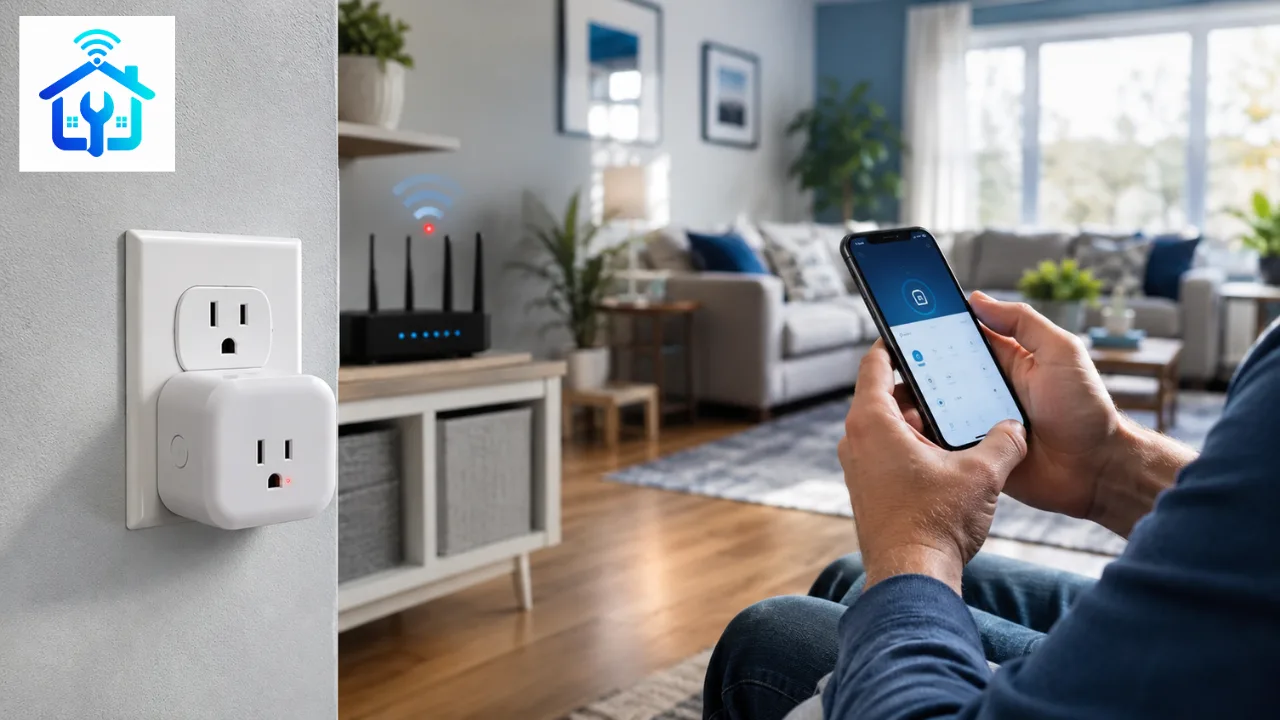
You finally bought a smart plug to automate your lights, coffee maker, or holiday decorations. You plug it in, open the app, and start the setup but the connection keeps failing.
If your smart plug won’t connect to Wi-Fi, you’re not alone. This is one of the most common issues homeowners face during setup. The good news is that, in most cases, the problem can be fixed in just a few minutes without replacing the device.
This guide walks you through the most effective troubleshooting steps that work for popular brands like TP-Link Kasa, Tapo, Smart Life, Gosund, Amazon Smart Plug, GE Cync, and many other Wi-Fi smart plugs.
Quick Highlights
| Issue | Quick Fix |
| Smart plug won’t connect during setup | Connect your phone to a 2.4 GHz Wi-Fi network |
| Plug can’t be discovered | Put the plug back into pairing mode |
| Connection fails after entering password | Verify the Wi-Fi password and security settings |
| Plug disconnects after setup | Improve Wi-Fi signal or restart your router |
| Nothing works | Factory reset the smart plug |
Why Your Smart Plug Won’t Connect to Wi-Fi
Several issues can prevent a smart plug from connecting successfully.
The most common causes include:
- Your router is using only a 5 GHz Wi-Fi network.
- The plug isn’t in pairing mode.
- Weak Wi-Fi signal.
- Incorrect Wi-Fi password.
- Router security settings are incompatible.
- VPN is enabled on your phone.
- Bluetooth or Location permission is disabled.
- Firmware or app issues.
One of the biggest reasons is that most Wi-Fi smart plugs only support 2.4 GHz networks, not 5 GHz.
Step 1: Confirm Your Router Supports 2.4 GHz Wi-Fi
This is the first thing you should check.
Most smart plugs are designed to work only with 2.4 GHz Wi-Fi because it offers better range and lower power consumption than 5 GHz.
How to Check
- Open your router settings.
- Look for Wi-Fi Bands.
- Make sure the 2.4 GHz network is enabled.
- Connect your phone to the same 2.4 GHz network before starting setup.
If your router combines both bands into one network name (SSID), temporarily separate them or disable the 5 GHz band during setup if your router allows it.
Step 2: Put the Smart Plug Into Pairing Mode
Many connection failures happen because the plug isn’t actually ready to pair.
Usually, you can:
- Plug it into the wall.
- Press and hold the power button for 5–10 seconds.
- Wait until the LED starts blinking rapidly.
A blinking LED generally indicates that the plug is ready for setup, though patterns vary by brand. Check your device manual if needed.
Step 3: Restart Your Router
A simple router restart fixes many temporary network problems.
Here’s How
- Unplug your router.
- Wait about 30 seconds.
- Plug it back in.
- Wait until the internet connection is restored.
- Try pairing the smart plug again.
This refreshes your Wi-Fi connection and DHCP assignments.
Step 4: Check the Wi-Fi Password
Double-check that:
- You’re entering the correct password.
- There are no accidental spaces.
- You’re connecting to the correct network.
A single incorrect character can prevent the plug from joining your Wi-Fi.
Step 5: Move the Plug Closer to the Router
Weak signal strength can interrupt the pairing process.
For the initial setup:
- Plug the smart plug into an outlet within 10–15 feet (3–5 meters) of your router.
- Complete the setup.
- Move it to its final location afterward.
This often resolves pairing failures caused by poor signal quality.
Step 6: Turn Off VPN
If you’re using:
- NordVPN
- ExpressVPN
- Surfshark
- Proton VPN
Turn it off temporarily.
VPNs can interfere with local device discovery during setup.
Step 7: Enable Phone Permissions
Many smart home apps require:
- Wi-Fi
- Bluetooth
- Local Network (iPhone)
- Nearby Devices (Android)
- Location Permission
Without these permissions, the app may fail to detect your smart plug.
Step 8: Update the Smart Plug App
Outdated apps can cause setup issues.
Check for updates in:
- Apple App Store
- Google Play Store
Then restart the app and try again.
Step 9: Factory Reset the Smart Plug
If nothing works, perform a factory reset.
Most models can be reset by:
- Holding the power button for 10–15 seconds.
- Waiting for the LED to blink rapidly.
- Setting up the plug again as a new device.
Refer to your manufacturer’s instructions for your specific model.
Step 10: Check Router Security Settings
Some older smart plugs don’t support newer security configurations.
If pairing keeps failing:
- Use WPA2-Personal (AES) if available.
- Avoid WPA3-only mode for older devices.
- Use standard Wi-Fi channels (1, 6, or 11 on 2.4 GHz) if troubleshooting advanced issues.
Common Brands This Guide Works With
These troubleshooting steps work for many popular smart plug brands, including:
- TP-Link Kasa
- TP-Link Tapo
- Smart Life (Tuya)
- Gosund
- Amazon Smart Plug
- GE Cync
- Emporia
- Lenovo Smart Plug
- Feit Electric
- Wemo
Frequently Asked Questions
1.Why won’t my smart plug connect to 5 GHz Wi-Fi?
Most Wi-Fi smart plugs are designed to work only on 2.4 GHz networks because they provide better range and lower power consumption.
2.Should my phone also be connected to 2.4 GHz?
Yes. During setup, your phone should typically be connected to the same 2.4 GHz Wi-Fi network that the smart plug will use.
3.Can I use a mesh Wi-Fi system?
Yes. However, some mesh systems use automatic band steering, which can interfere with pairing. If needed, temporarily connect through the 2.4 GHz network during setup.
4.Why does my smart plug disconnect after setup?
Common causes include weak Wi-Fi signals, router settings, power interruptions, or outdated firmware. Restarting the router and checking signal strength usually resolves the issue
If your smart plug won’t connect to Wi-Fi, don’t assume it’s defective. In most cases, the issue is related to network settings, pairing mode, or Wi-Fi compatibility rather than the hardware itself.
Start with the simplest fixes confirm you’re using a 2.4 GHz network, restart your router, enable the required phone permissions, and reset the plug if necessary. By following these steps in order, you can usually get your smart plug connected and working within a few minutes.