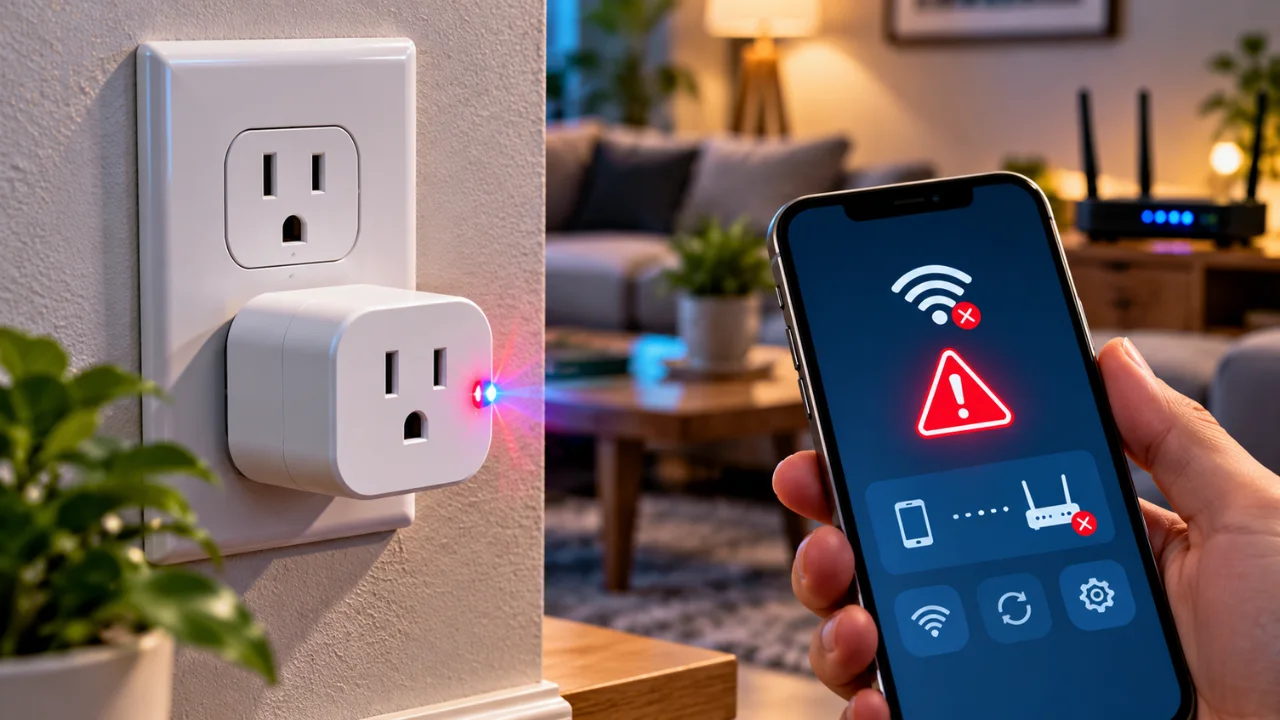
If your smart plug flashing red and blue, it usually means the device is trying to connect to your Wi-Fi network but can’t complete the setup. In most cases, the problem is related to pairing mode, incorrect Wi-Fi settings, router compatibility, or a temporary network issue not a hardware failure.
For homeowners in the United States, this is one of the most common smart home problems reported after installing a new plug, changing internet providers, replacing a router, or experiencing a power outage. The good news is that you can often fix the issue in just a few minutes without replacing the device.
Read Also-Dyson Vacuum Pulsing Off Even After Cleaning Filter? 12 Proven Fixes
What Does a Smart Plug Flashing Red and Blue Light Mean?
Although LED patterns vary slightly by manufacturer, a red and blue flashing light commonly indicates that the smart plug is waiting to connect or has failed to complete the Wi-Fi setup process.
The most common causes include:
- The plug is in pairing mode.
- The Wi-Fi password is incorrect.
- The plug can’t detect a supported Wi-Fi network.
- The router is temporarily offline.
- The setup process was interrupted.
Many popular U.S. smart plugs including models compatible with Alexa, Google Home, and Matter use similar LED behavior during installation.
Quick Solutions That Usually Fix the Problem Smart Plug Flashing
Try these troubleshooting steps in order.
1. Check Your Wi-Fi Band
Most smart plugs support 2.4GHz Wi-Fi only.
If your phone is connected to a 5GHz network during setup, the plug may fail to pair.
Quick Fix:
- Connect your phone to the 2.4GHz network.
- Restart the setup process.
2. Move the Plug Closer to Your Router
Weak Wi-Fi signals can interrupt pairing.
Try plugging the smart plug into an outlet located closer to your wireless router during setup.
Once connected successfully, you can move it to its permanent location.
3. Restart Your Router
Temporary router issues often prevent smart devices from connecting.
Steps:
- Unplug the router for 30 seconds.
- Plug it back in.
- Wait until the internet connection is fully restored.
- Try pairing the smart plug again.
4. Reset the Smart Plug
If setup repeatedly fails, perform a factory reset.
Most smart plugs can be reset by:
- Holding the power button for 5–10 seconds
- Waiting until the LED starts flashing again
- Opening the companion app
- Completing the setup as if the device were brand new
Check your manufacturer’s instructions if the reset procedure differs.
Read Also-Why Does My Roku TV Screen Go Black But Has Sound? 10 Proven Fixes That Actually Work
5. Update the Smart Home App
An outdated app may cause pairing problems.
Before trying again:
- Update the manufacturer’s app.
- Update your smartphone’s operating system if available.
- Enable Bluetooth and Location permissions if requested during setup.
Other Common Reasons Your Smart Plug Flashing Won’t Connect
If the flashing continues after trying the basic fixes, one of these issues could be responsible.
Incorrect Wi-Fi Password
Even one incorrect character will prevent the plug from connecting.
Hidden Wi-Fi Network
Some smart plugs cannot automatically detect hidden SSIDs.
MAC Address Filtering
Router security settings may block new smart devices.
VPN Enabled
Disable any VPN on your phone during setup.
Router Security Settings
Some older smart plugs may not support WPA3-only networks.
Switching temporarily to WPA2 compatibility (if available) can help during pairing.
When Should You Replace the Smart Plug?
A flashing red and blue light does not usually mean the device is defective.
However, replacement may be worth considering if:
- The plug never enters pairing mode.
- The LED remains off even after changing outlets.
- The device repeatedly disconnects after successful setup.
- It becomes unusually hot during normal use.
- A factory reset doesn’t restore normal operation.
If the plug is still under warranty, contact the manufacturer before purchasing a replacement.
How to Prevent Smart Plug Flashing Problem in the Future
To avoid My Smart Plug Flashing Red/Blue future connection issues:
- Keep your router firmware updated.
- Use a stable 2.4GHz Wi-Fi network for smart home devices.
- Place your router in a central location.
- Avoid unplugging smart plugs during firmware updates.
- Label your Wi-Fi passwords and keep your smart home apps updated.
- Restart your router occasionally if multiple smart devices begin disconnecting.
Following these simple maintenance steps can improve the reliability of your smart home and reduce future pairing problems.
Read Also- How to Fix Google Nest Camera Offline (9 Proven Fixes That Actually Work)